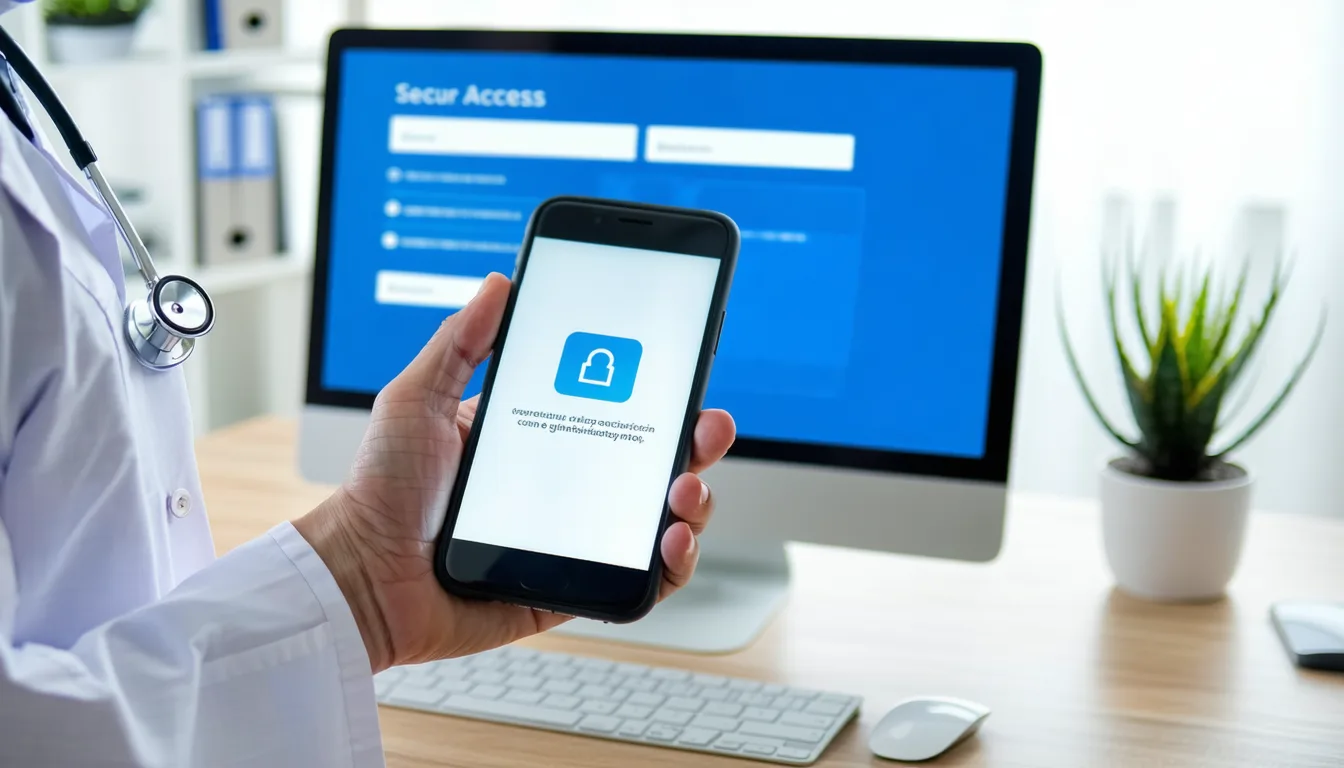
Multi-factor authentication (MFA) is no longer a best practice for medical practices — it is a legal requirement. The 2026 HIPAA Security Rule eliminated the "addressable" designation for MFA, making it mandatory for every system that accesses electronic protected health information (ePHI). If your practice hasn't implemented MFA yet, you have roughly 240 days from the rule's publication to comply — or face enforcement action from the Office for Civil Rights.
The good news: MFA doesn't have to be disruptive. This guide walks you through a practical 4-week rollout plan designed specifically for medical practices in Northern Virginia and the DC metro area — one that protects patient data without slowing down clinical workflows.
What Is Multi-Factor Authentication (and Why Does HIPAA Now Require It)?
Multi-factor authentication means requiring two or more forms of verification before granting access to a system. Instead of just a password (something you know), MFA adds a second factor — typically something you have (a phone or hardware key) or something you are (a fingerprint).
The reason HIPAA now mandates MFA is straightforward: passwords alone fail catastrophically. According to Verizon's 2024 Data Breach Investigations Report, 80% of hacking-related breaches involve compromised credentials. In healthcare specifically, phishing attacks harvest passwords daily — and once an attacker has a valid login, they walk straight into your EHR, your billing system, and your patient records.
The 2026 HIPAA Requirement: Section 164.312(d) of the updated Security Rule now requires "multi-factor authentication for all access to electronic protected health information." There is no exception for practice size, no alternative measure, and no delayed implementation option for small practices. This is mandatory.
Which Systems Need MFA in Your Practice?
Every system that touches patient data needs MFA enabled. For a typical medical practice, this includes:
- Electronic Health Records (EHR) — Epic, athenahealth, eClinicalWorks, DrChrono, NextGen, or whatever your practice uses. This is priority #1.
- Email — Microsoft 365 or Google Workspace. Email is the #1 attack vector for healthcare breaches.
- Practice Management Software — Scheduling, billing, and claims systems that contain patient demographics and insurance information.
- Remote Access / VPN — Any way staff access systems from outside the office.
- Cloud Storage — Box, Dropbox, OneDrive, Google Drive — anywhere documents containing PHI might live.
- Patient Portal Admin Access — The backend of your patient portal where staff manage accounts and view messages.
- Network Equipment — Firewalls, routers, and switches (for IT administrators).
Common oversight: Many practices enable MFA on their EHR but forget about email and cloud storage. An attacker who compromises an unprotected email account can reset passwords, intercept PHI in attachments, and pivot to other systems. Protect every entry point — not just the obvious ones.
What MFA Methods Work Best in Clinical Settings?
Not all MFA methods are created equal — and not all work well in a busy medical practice. Here's what makes sense for different clinical scenarios:
Authenticator Apps (Recommended for Most Staff)
Apps like Microsoft Authenticator, Google Authenticator, or Duo Mobile generate a time-based code or push notification on a staff member's smartphone. This is the best balance of security and convenience for most clinical workflows.
- Pros: Free, easy to set up, works without cell signal (time-based codes work offline), fast approval via push notification.
- Cons: Requires staff to have a smartphone. Some clinical staff may resist using personal devices for work.
Hardware Security Keys (Best for Shared Workstations)
Physical USB devices like YubiKey or Feitian keys. Staff tap the key to authenticate — no phone required. Ideal for exam rooms, nursing stations, and other shared workstations where speed matters.
- Pros: Fastest authentication method (tap and go), no phone dependency, phishing-resistant (FIDO2 protocol), easy for non-technical staff.
- Cons: Costs $25-60 per key, keys can be lost (budget for spares), requires initial configuration.
Biometrics (Fingerprint/Face Recognition)
Built into modern devices — Windows Hello, Touch ID, or fingerprint readers attached to workstations.
- Pros: Nothing to carry, extremely fast, familiar to most people.
- Cons: Requires compatible hardware, doesn't work with gloves (common in clinical settings), can fail with wet or sanitized hands.
JPert's recommendation for most practices: Use authenticator apps as your default MFA method, with hardware security keys at shared workstations (front desk, nurse stations, exam rooms). Avoid SMS-based codes — they can be intercepted through SIM-swapping attacks and are specifically discouraged under the updated HIPAA guidance.
The 4-Week MFA Rollout Plan
Rolling out MFA doesn't need to take months. Here's a proven 4-week plan that minimizes disruption to patient care while meeting the HIPAA mandate. This is the exact framework we use with healthcare practices across Northern Virginia.
Week 1: Planning and Vendor Selection
Before touching any systems, spend the first week mapping what needs MFA and choosing your tools.
- Inventory every system that accesses ePHI — your EHR, email, practice management, billing, cloud storage, remote desktop, and patient portal. List them all.
- Choose an MFA provider. For most practices, Microsoft Authenticator (if you use Microsoft 365) or Duo Security works well. Both integrate with common EHR platforms.
- Order hardware security keys for shared workstations — exam room computers, front desk stations, and nursing stations. Budget 2-3 keys per shared station plus spares.
- Draft a staff communication explaining what's changing, why (the HIPAA requirement), and that it adds approximately 5 seconds to their login process.
- Define your emergency exception policy — what happens if a physician needs immediate patient access and MFA is unavailable? (More on this below.)
Week 2: IT Staff and Administrative Rollout
Roll out to your smallest, most tech-comfortable group first. This lets you catch issues before they affect patient care.
- Enable MFA for IT administrators and office managers first.
- Test every login workflow — EHR from the office, EHR from home, email on phone, billing system, patient portal admin.
- Identify and solve edge cases: What happens with the billing software that doesn't natively support MFA? (Answer: put it behind a VPN that requires MFA.)
- Create simple help desk scripts for common issues: "I didn't get my push notification," "I lost my phone," "The hardware key isn't working."
Week 3: Clinical Staff Rollout
This is the critical week. Clinical staff have the least patience for login friction, so preparation and on-site support are essential.
- Schedule 15-minute training sessions during existing staff meetings or shift overlaps — not as separate mandatory training that takes time away from patients.
- Enroll nurses and medical assistants first (Monday-Tuesday), then physicians (Wednesday-Thursday). This ensures support staff can help doctors if they have trouble.
- Deploy hardware keys at shared workstations — attach them with retractable lanyards so they don't walk off.
- Have IT support physically present during clinical hours for the first two days. Resolving issues in 30 seconds at the workstation prevents frustration and resistance.
Week 4: Verification and Documentation
The final week is about closing gaps and creating the audit documentation HIPAA requires.
- Run an enrollment report — verify that 100% of active user accounts have MFA enabled. Zero exceptions.
- Disable password-only access — flip the switch so MFA isn't optional. This is the hardest part psychologically, but it's what compliance requires.
- Document everything — which systems have MFA, which methods are used, when it was implemented, who is enrolled. This is what OCR auditors will ask for.
- Test the emergency breakglass procedure — simulate a scenario where a physician needs access and MFA fails. Verify the backup process works.
How to Handle Shared Workstations in Clinical Settings
Shared workstations are the most common concern practices raise about MFA. Exam rooms, nursing stations, and front desks often have computers used by multiple staff members throughout the day. Requiring each person to authenticate with their phone every time they switch users seems impractical.
Here's what works:
- Hardware security keys on retractable lanyards — each staff member wears their key on a badge reel. Tap the key, enter your PIN, you're in. Takes 3 seconds.
- Session timeouts with "tap to resume" — configure workstations to lock after 2 minutes of inactivity. A quick tap of the hardware key unlocks without re-entering credentials.
- Windows Hello for Business — if your workstations support it, facial recognition or fingerprint readers let staff authenticate without touching anything (important for clinical hygiene).
- Proximity-based authentication — newer solutions like Imprivata detect a badge or Bluetooth device and automatically log in the nearest authorized user. Higher cost, but ideal for high-volume clinical environments.
What doesn't work: Shared MFA tokens, a single hardware key velcroed to a workstation, or "generic" login accounts shared by multiple staff. All of these violate HIPAA's individual accountability requirements. Every access to ePHI must be traceable to a specific person.
Emergency Access: The "Breakglass" Procedure
What happens if a physician needs immediate access to a patient's record during an emergency and MFA fails — their phone is dead, the hardware key is lost, or the system is down?
HIPAA allows for emergency access procedures. Here's how to set one up properly:
- Designate a breakglass account — a separate emergency-only login with a strong password stored in a sealed envelope or password manager with supervisor access.
- Every use triggers an automatic alert to the practice's security officer and generates an audit log entry.
- Require documentation within 24 hours — the user must file a brief report explaining why breakglass was used and confirm the emergency.
- Review all breakglass events monthly — if it's being used more than once per quarter, your primary MFA setup needs improvement.
Critical: The existence of an emergency access procedure does not make MFA optional. OCR expects MFA to be the default for 100% of routine access. Breakglass is for genuine emergencies only — not for convenience when someone forgets their phone.
What Happens If Your Practice Doesn't Implement MFA?
The consequences of non-compliance are concrete and escalating:
- OCR enforcement: Failure to implement required safeguards can result in penalties from $100 to $50,000 per violation, with annual caps reaching $1.5 million per violation category.
- Breach amplification: Without MFA, a single phished password gives an attacker full access. The average healthcare breach costs $7.42 million (IBM, 2025).
- Cyber insurance: Virtually every cyber insurance policy now requires MFA. Without it, your claim will be denied — meaning your practice absorbs the full cost of a breach.
- Patient trust: Patients whose records are compromised because their doctor's office didn't enable a basic security control will not stay patients for long.
In 2025, OCR resolved 22 enforcement cases totaling $8.45 million in fines. Eighteen of those involved failure to implement adequate security measures. MFA is now the most visible, easily-auditable control — making it one of the first things an investigator checks.
Getting Started Today
If your practice hasn't begun MFA implementation, start this week. The 4-week timeline above is realistic and proven — we've deployed it across medical practices of all sizes in Northern Virginia and the DC metro area.
For practices that want expert guidance through the process, JPert INC provides HIPAA-compliant managed IT services that include full MFA deployment, hardware key procurement, staff training, shared workstation configuration, and the audit documentation OCR expects. We handle the technical complexity so your team can focus on patients.
Request a free HIPAA assessment and we'll evaluate your current MFA readiness as part of a comprehensive security review — at no cost and no obligation.